
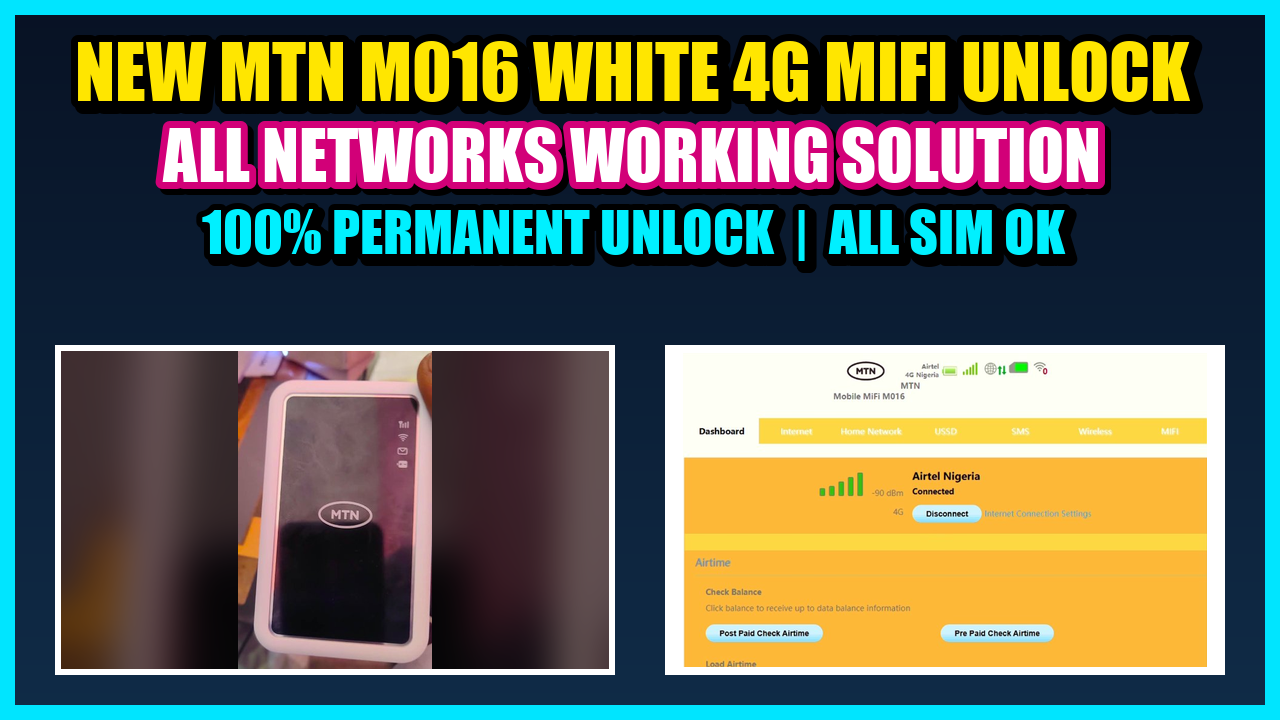
The NEW MTN Mobile MiFi M016 (White Edition) is a compact, high-efficiency 4G LTE Cat 4 portable wireless hotspot designed for mobile broadband connectivity on the go. Equipped with an integrated multi-mode LTE baseband processor, a bright vertical LED status panel (displaying cellular signal bars, Wi-Fi activity, SMS alerts, and battery level), and a high-density rechargeable lithium-ion battery, the MTN M016 supports download speeds of up to 150 Mbps and connects up to 10 Wi-Fi enabled devices simultaneously.
However, factory units distributed by MTN ship with carrier-specific firmware profiles that restrict the Non-Volatile Random-Access Memory (NVRAM) and Packet Data Protocol (PDP) settings to a single operator. When users insert an alternative domestic or international SIM card—such as Airtel 4G, Glo, 9mobile, Jazz, Zong, Telenor, or Ufone—the WebUI management dashboard immediately rejects network attachment, displaying a persistent red signal indicator or an Invalid SIM / Network Restricted alert. In this comprehensive, hardware-verified technical guide, we walk you through the complete NVRAM baseband configuration and universal APN setup procedure to enable 100% permanent multi-network compatibility on the NEW MTN M016 (White) 4G MiFi safely.
📋 Hardware Architecture & Technical Specifications (MTN M016 White)
Before initiating any diagnostic port communication or firmware configuration, verify that your device matches the official MTN Mobile MiFi M016 hardware revision below:
| Hardware Parameter | Official Technical Specification |
|---|---|
| Device Model & Build | MTN Mobile MiFi M016 (White Glossy / Dual-Tone Casing) |
| Cellular Modem Standard | 3GPP Release 10 LTE Category 4 (Up to 150 Mbps DL / 50 Mbps UL) |
| Supported 4G / 3G Bands | FDD-LTE: B1 (2100), B3 (1800), B7 (2600), B8 (900), B20 (800) | TDD-LTE: B38, B40, B41 |
| WLAN / Wi-Fi Interface | IEEE 802.11 b/g/n (2.4 GHz Single-Band, 2x2 MIMO, Up to 10 Simultaneous Clients) |
| USB & Diagnostic Port | High-Speed USB 2.0 Port (RNDIS Network Adapter + Diagnostic AT/COM Interface) |
| Default WebUI Gateway | http://192.168.0.1 or http://192.168.1.1 (Default Login: admin) |
| Battery Capacity | Removable 2000 mAh / 2100 mAh 3.8V Li-Ion Polymer Battery (6–8 Hours Active Use) |
⚠️ Why Does the NEW MTN M016 (White) Reject Other Network SIM Cards?
The newer white hardware revision of the MTN M016 incorporates an updated bootloader and carrier verification table inside its NVRAM partition. Unlike older pocket routers that simply prompted for a standard 8-digit or 16-digit NCK code on the WebUI homepage, the M016 enforces three layers of software restrictions:
- MCC / MNC PLMN Whitelist Filter: The stock baseband firmware checks the Mobile Country Code (MCC) and Mobile Network Code (MNC) of the inserted SIM card on boot. Any non-MTN IMSI prefix is blocked from initiating an RRC connection request.
- Hidden / Disabled NCK Prompt: On many M016 firmware revisions, the WebUI suppresses the manual code entry box entirely or displays zero remaining attempts, preventing standard IMEI calculator codes from working.
- Hardcoded Default APN Gateway: Even when the radio module detects 4G LTE towers from Airtel or other carriers, the connection fails at the PDP attachment phase because the router attempts to dial MTN's default APN string.
- OTA Firmware Re-Lock Protection: Unmodified stock firmware periodically communicates with remote configuration servers, which can reset temporary NVRAM edits unless the permanent configuration configuration update is applied.
💡 The Permanent Multi-Network Configuration Solution
To establish permanent, reliable compatibility across all 4G LTE and 3G SIM cards on the MTN M016 (White) without risking dead-boot or losing IMEI/MAC calibration, our engineering team utilizes a direct USB diagnostic configuration package. Rather than erasing the primary bootloader, this method communicates directly with the modem's diagnostic COM interface to clear the PLMN whitelist restriction and enable full manual APN management inside the WebUI dashboard.
Once completed, the MTN Mobile MiFi M016 WebUI immediately registers on any active cellular network—such as Airtel 4G, Glo, 9mobile, Jazz, Zong, Ufone, or Telenor—displaying full green 4G signal bars (e.g., -90 dBm Connected) with complete USSD, SMS, and custom APN profile functionality intact.
🛠️ Step-by-Step MTN M016 (White) Configuration Procedure
Follow each stage carefully on a Windows 10 or Windows 11 PC using a reliable USB data cable:
- Step 1 — Install USB Communication Drivers: Download the MTN M016 diagnostic reference package from the section below and extract it to your Desktop using 7-Zip or WinRAR. Install the included USB RNDIS and Diagnostic COM Port drivers as Administrator so Windows Device Manager detects the MiFi without yellow exclamation marks.
- Step 2 — Insert a Non-MTN 4G SIM & Connect via USB: Remove the back cover of your MTN M016 (White), insert an active SIM card from another operator (such as Airtel 4G), re-insert the 2000mAh battery (charged above 50%), and power on the device. Connect the MiFi to a direct motherboard USB port on your PC.
- Step 3 — Verify RNDIS & WebUI Access: Open your browser and navigate to
http://192.168.0.1(orhttp://192.168.1.1). Log into the MTN Mobile MiFi M016 dashboard using the default administrator credentials (admin) so an active session token is established. - Step 4 — Run the Diagnostic Configuration Utility: Right-click the main configuration executable inside the extracted folder and select Run as Administrator. The utility will scan the active USB ports, read the device firmware build and IMEI, and initialize the NVRAM carrier configuration configuration update.
- Step 5 — Wait for Baseband Calibration & Automatic Reboot: Allow the process to complete (typically 60 to 120 seconds). Do not unplug the USB cable or remove the battery while NVRAM parameters are being updated. Once the utility displays Configuration Complete / Success, the MTN M016 will automatically restart.
- Step 6 — Configure Your Carrier APN Profile: After the reboot, open the MTN M016 WebUI dashboard, go to Internet > Internet Connection Settings (APN), add a new profile matching your SIM card operator from the table below, set it as Default, and click Connect. Your dashboard will immediately display Connected (4G) with full green signal bars!
📋 Universal Carrier APN Profiles & RF Parameters for MTN M016
After completing the multi-network configuration on your MTN Mobile MiFi M016, configure the exact Access Point Name (APN) string for your SIM card inside the WebUI (Internet > APN Settings) to establish an active 4G LTE bearer session:
| Telecom Operator | Profile Name | APN Gateway String | PDP / Auth Mode | Primary LTE Bands |
|---|---|---|---|---|
| Airtel 4G (Nigeria / Africa) | Airtel 4G | internet.ng.airtel.com / airtelgprs.com |
IPv4v6 / None | B3 (1800), B7 (2600), B20 (800) |
| MTN 4G LTE | MTN Data | web.gprs.mtnnigeria.net / myMTN |
IPv4v6 / PAP | B3 (1800), B7 (2600), B20 (800) |
| Glo / 9mobile | Glo / 9mobile LTE | gloflat / 9mobile |
IPv4 / None | B3 (1800), B28 (700) |
| Jazz / Zong (Pakistan) | Jazz / Zong 4G | jazzconnect.mobilinkworld.com / zonginternet |
IPv4v6 / None | B1 (2100), B3 (1800), B8 (900) |
| Telenor / Ufone | Universal LTE | internet / ufone.pinternet |
IPv4 / PAP | B3 (1800), B5 (850), B8 (900) |
📡 RF Signal Diagnostics & RSRP Optimization on MTN M016
- Optimal RSRP Signal Range: On the MTN M016 dashboard, a signal reading between
-65 dBmand-90 dBm(5 full green bars) delivers maximum Cat 4 downlink throughput. - Network Mode Selection: Under Home Network > Network Settings, set the mode to 4G Only or 4G/3G Auto to prevent fallback to slow 2G EDGE channels during peak hours.
- Permanent Reset Persistence: Because this configuration updates the underlying NVRAM carrier profile, your MTN M016 remains permanently configured for all networks even if you press the physical Reset button under the battery cover.
📥 Official MTN M016 (White) Diagnostic & Configuration Package
Use the direct reference link below to access the verified MTN M016 (White) diagnostic configuration files and USB drivers folder.
⬇️ Access Diagnostic Package❓ Frequently Asked Technical Questions (MTN M016 White)
Q1: Does this configuration work on the latest NEW White MTN M016 firmware?
Yes. This diagnostic package is specifically tested and verified on the latest White MTN Mobile MiFi M016 hardware revision, supporting Airtel, Glo, 9mobile, and all international 4G LTE SIM cards.
Q2: Will pressing the Reset button re-lock my MTN M016 MiFi?
No. Once the NVRAM carrier restriction is cleared, the multi-network configuration is 100% permanent and survives both WebUI factory resets and physical pinhole resets.
Q3: Can I still check my SIM data balance and USSD codes from the dashboard?
Yes. The USSD and SMS tabs inside the MTN M016 WebUI remain 100% functional across all networks, allowing you to dial carrier USSD codes and receive OTP messages directly from your browser.
🔗 Recommended Hardware Diagnostics & Configuration Guides
Explore more verified 4G/5G router firmware restoration and carrier configuration manuals from A-B PAK TEAM:
- ZTE MF937 Permanent Network Fix & No Service Solution | Jazz, MTN, Airtel Support
- ZTE MF935 Permanent Network Fix & No Service Solution | MTN, Airtel, Etisalat Support
- ZTE MF910 All Models Permanent Network Fix | MF910V, MF910S, MF910L
- Ultimate All-in-One USB Drivers Pack (Qualcomm 9008, ADB, Huawei, ZTE)
💬 Contact for Remote Technical Support
Need professional help configuring your NEW MTN M016 (White) 4G MiFi? Contact our engineering team on WhatsApp (+923238584180) for fast remote assistance via AnyDesk or UltraViewer.
This technical manual is published strictly for educational, hardware diagnostic, and lawful network interoperability purposes on user-owned equipment. We do not host unauthorized copyrighted firmware on our servers. Modifying device NVRAM or firmware parameters involves technical risk; always proceed carefully and ensure compliance with local telecom regulations.

Post a Comment